Home automation
Smart light switches can make your home feel calmer, simpler and more responsive. Instead of relying on separate bulbs, apps and remotes, a smart light switch gives you control from a familiar place: the wall.
Tewke Tap is designed to work with traditional UK wiring, with or without a neutral wire. That means installation can be straightforward for a qualified electrician, provided the lighting circuit and connected bulbs or drivers are compatible.
This guide explains how Tap is installed, what needs to be checked first, and how to set it up once the switch is fitted.
Before you begin: Familiarisation with Tap and your lighting system
Before installing Tap, it’s important to understand your existing lighting setup.
Tap is made up of three parts:
the Frame
the Wall Dock
the Tap Screen Module
The white Wall Dock and black touchscreen Tap Screen Module are magnetically connected; pull firmly to separate them. The Frame is loose and will be secured by pressure from the Wall Dock when screwed in.
Turn off the circuit breaker for the lighting circuit where Tap will be installed. If you are unsure where your circuit breaker is, stop here and seek professional assistance.
Check your lighting type. You may need to remove a bulb from its fitting. Refer to the Tewke compatibility table to confirm the bulb is supported, and ensure you do not have too many or too few bulbs in the circuit.
Two or three-way switching: Tap supports these circuits, but only if one unit is directly connected to the lights. Additional Taps can be installed in the same circuit as ‘virtual’ switches, not directly wired to the bulbs. Neutral wires are required in this case.
Check wiring. Unscrew your existing switch and confirm whether or not a neutral wire is present.
Step 1: Check if you have a neutral wire
Tap can be installed with or without a neutral wire, but the wiring approach is different.
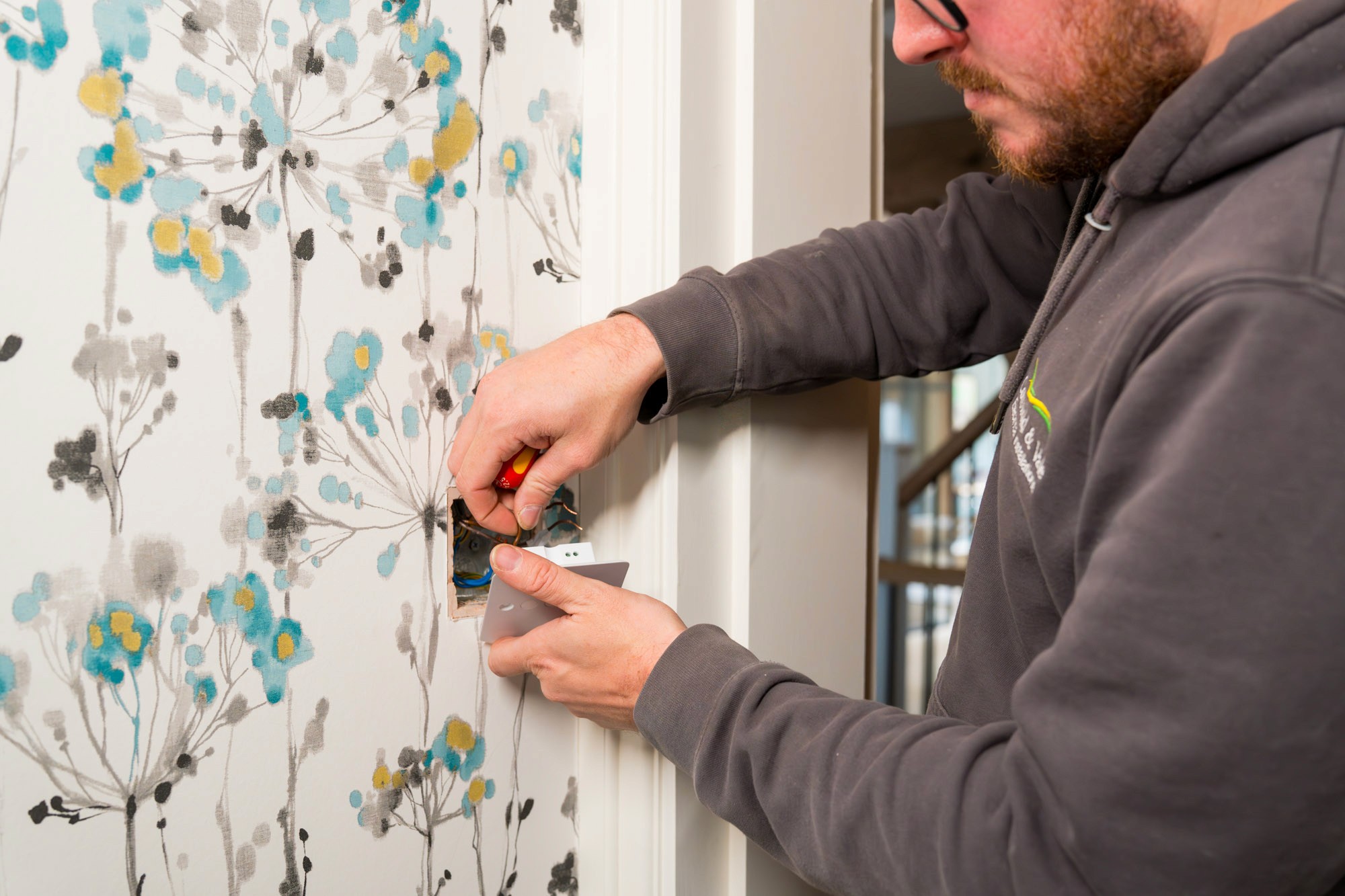
To check, the existing light switch needs to be unscrewed so the wiring can be inspected. Before removing any wires, take a clear photo of the existing setup. This gives the electrician a useful reference point if anything needs to be checked later.
The terminals on the back of the Tap Wall Dock are:
Live
Neutral
L1
L2
L3
Please take a photo of the existing wireframe before removing any wires from your current switch.
Step 2a: Installing Tap with a neutral wire
If a neutral wire is present, the wires are connected to the matching terminals on the Wall Dock.
Connect the wires to the matching terminals on the Wall Dock. If you do not have three gangs, simply leave L2 and/or L3 empty.
Tighten carefully. Do not overtighten the screw terminals. Give each wire a firm but gentle pull to check it is secure.
Step 2b: Installing Tap without a neutral wire
Tap can also be installed without a neutral wire, but there are extra compatibility checks.
Check the load. The circuit connected to L1 must have at least 20W of dimmable load, ideally four or more dimmable LEDs, or an incandescent bulb. Do not exceed 100VA on any individual gang, or 300VA total across all three gangs.
Connect Neutral and L1 using either the supplied connector or a short length of wire.
Connect Live, L1, and L2/L3 (if used) to the Wall Dock. Do not overtighten the screw terminals. Give each wire a firm but gentle pull to ensure it is secure.
Step 3: Fitting the Frame and Wall Dock
Once the wiring is complete, the Wall Dock can be fitted to the pattress box. Here’s the process:
Fix the Wall Dock loosely. Using either your existing screws or the supplied M3.5 × 50mm screws, turn each screw 2–3 rotations into the pattress box so the Wall Dock sits loosely against the wall.
Fit the Frame. Hold the Frame at a 45-degree angle and slide it around the front of the Wall Dock so it sits behind. A little gentle wiggling may be needed. If there isn’t enough slack to slide the Frame behind, install the Frame after inserting just one screw loosely. Once the Frame is in place, add the second screw.
Tighten the Wall Dock. Screw it into place carefully, ensuring the Frame is centred behind it. Do not overtighten, as this may damage the Wall Dock.
Check the fit. The Frame should sit evenly around the Wall Dock. Visually inspect the boundary to confirm it looks even.
Restore power. Turn the circuit breaker back on.
Step 4: Connecting the Tap Screen Module
Connecting Screen Module and Configuring the Wall Dock
Attach the Screen Module by magnetically connecting it to the Wall Dock; it should snap into place and sit neatly within the Frame. Note: ensure the gold pads on the back of the Screen Module align with the gold pins on the Wall Dock. The speaker and sensor openings on the Screen Module should face downwards.
Power on. After 6–8 seconds, the Tewke logo will appear on the Screen Module, followed by the Wall Dock configuration screen.
Configure the Wall Dock. Follow the on-screen instructions to set up the Wall Dock and specify the type of lighting it is connected to.
Step 5: Setting up Tap in the Tewke app (for homeowners)
Download the Tewke app from the App Store or Google Play.
Create an account in the app, or log in to your existing Tewke account.
Enter onboarding mode by swiping up from the bottom of the Tap Screen Module.
Follow the on-screen instructions in both the Tap Screen Module and the Tewke app to complete setup.
Note: Onboarding is designed for the homeowner. Once the first Tap has been set up, the homeowner can invite their electrician to join their home in the app if support with configuration is required.
A calmer way to control your home
Installing a smart light switch should make life easier, not more complicated.
Tewke Tap is designed to fit into the home quietly, giving you simple control from the wall while helping you create the right atmosphere for each moment. Once installed and configured, it becomes part of the rhythm of the home, ready when you need it and quietly in the background when you don’t.