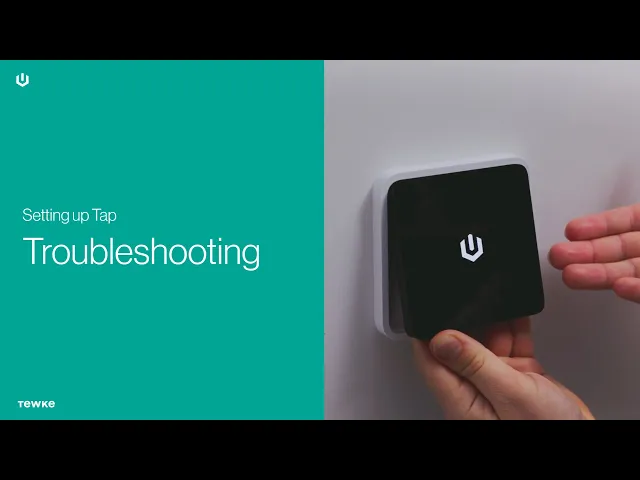
Troubleshooting
If your Tap screen isn't responding, looks unusual, or isn't controlling your lights as expected, don't worry. Running through these quick troubleshooting steps will usually get things back to normal.
Check your internet connection
If Tap appears unusual or is failing to update, it’s highly likely it has simply lost its connection to the internet. Check that your home Wi-Fi is working on your phone or other devices, and make sure your router hasn't temporarily gone offline.
Reattach the Screen Module
Gently pull the Screen Module off the Wall Dock.
Wait for a second.
Snap the Screen Module back onto the Wall Dock (it connects magnetically). Wait a few seconds for the screen to wake back up.
Restart the Screen Module
Take the Screen Module off the Wall Dock.
Tap the Power off button that appears on the screen.
Wait for the device to completely switch off and the screen to go black.
Return the Screen Module to the Wall Dock to boot it back up.
Test the Wall Dock buttons
Try to isolate the issue by checking if the problem lies with the Screen Module or the power supply to the switch.
Remove the Screen Module from the Wall Dock.
Press the physical buttons on the front of the Wall Dock.
If your lights switch on and off normally, your Wall Dock is receiving power and working perfectly. If the Screen Module is still not responding, contact support.
Check your lighting load (No-neutral setups only)
If you installed your Tap without a neutral wire, the Wall Dock relies on power passing through your bulbs to stay awake.
Double-check that there is at least 30W of dimmable load connected to your L1 terminal.
If the wattage on L1 is too low, the Wall Dock may not have enough power to operate the screen or control the lights.
Still not working?
If you've tried these steps and your Tap still isn't working as it should, our support team is happy to help. Get in touch here.