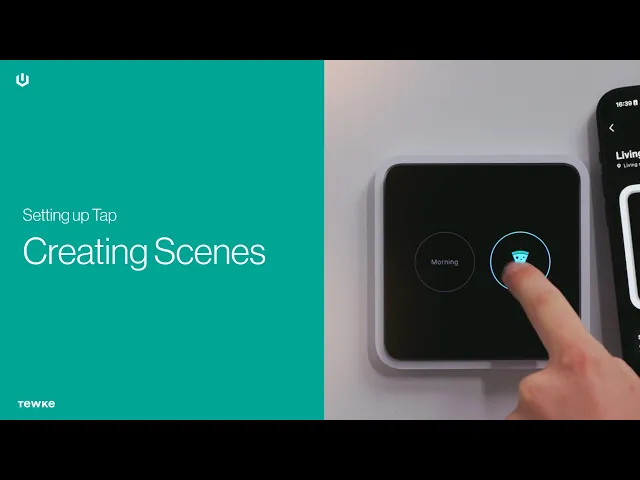
Setting up your lighting with Scenes
A Scene sets the lights in a room exactly how you like them with a single touch. You create, change and delete Scenes in the Tewke app, and you can add your favourites to your Tap so they’re always one touch away.
Before you start, make sure you’ve set up a Tap in a room (see the previous guide).
Create a Scene
Open the Tewke app. The home screen shows your rooms and the Taps in each one.
Start a new Scene in either of two ways:
Press the + button at the top right, choose Create scene, pick the room, then press Select room.
Or press the three dots next to a room’s name. This skips the room selection and takes you straight to the next screen.
Give your Scene a name.
Choose the devices you want the Scene to control. For lights, you can also set the brightness you want.
Optional: choose an icon for your Scene. If the Scene is on your Tap, its name appears on screen unless you pick an icon to show instead.
Press Create at the top right.
Good to know: If two Scenes use any of the same lights, switching one on switches the other off. If you want to be able to switch two Scenes on at the same time independently, make sure they don’t share any lights.
Add the Scene to your Tap
After you create a Scene, the app asks if you’d like to add it to one of your Taps.
Scroll along the Taps in the room and choose where you’d like it.
Or press Not Now at the top corner if you’d rather do this later.
Your new Scene will now appear in the list on the app’s main screen.
Tip: Each Tap shows up to four Scenes, so pick the ones you’ll use most.
Use a Scene
Press a Scene’s icon to switch it on or off. Press its name to open it and change the details.
Delete a Scene
Open the Scene, scroll to the bottom and choose the delete option. You’ll be asked to confirm before the Scene is permanently removed.